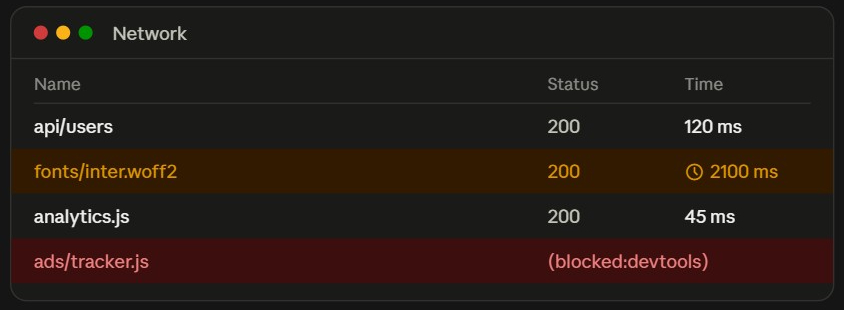
Chrome DevTools can now throttle specific browser requests or entire domains, instead of slowing down your whole page. Test a slow API, a laggy font, or a delayed image without dragging every other resource down with it.
Traditional network throttling is all-or-nothing. Simulate 3G to test one slow endpoint, and every request on the page crawls, making it hard to isolate a single performance issue or test how your app handles one delayed resource on its own.
Chrome calls this Individual Request Throttling. It’s built into stable Chrome from version 145 onward, folded into the same panel that used to handle request blocking.
How to Throttle Specific Browser Requests
Open DevTools → Network tab, find the request, then:
- Right-click the request
- Select Throttle request – for either the exact URL or the whole domain
This opens the Request Conditions drawer, where you pick a preset like Slow 3G, or add your own custom profile. Patterns support wildcards, so you can match more than one request at once – *://api.example.com/* throttles every request to that domain.
Once a rule is active, DevTools makes the effect obvious: throttled requests turn yellow/gold with a small clock icon in the Network panel, and blocked ones show up in red. Hover the icon to confirm exactly which condition is applied, worth checking before you spend time debugging a problem that turns out to just be your own test rule.
If a request matches more than one rule, DevTools applies whichever one comes first in the list. You can reorder them with the drawer’s arrow buttons if a more specific pattern needs priority.
Delaying a Browser Request by a Fixed Amount
Sometimes you don’t want simulated 3G, just a fixed delay, very useful for testing loading states or fallback fonts.
To delay all web fonts by 2 seconds:
- Throttle any
.wofffile, then widen the URL pattern to*://*/*.woff* - In the drawer’s throttling dropdown, choose Add custom profile, and this opens Settings > Throttling
- Set Latency to
2000ms, and leave Download/Upload blank, note that both are optional, so leaving them empty gives you pure delay with no bandwidth cap
Reload, and the page renders with fallback fonts first, swapping in the real ones two seconds later, this is perfect for checking FOUT behavior.
Practical Use Cases
- Slow APIs – test loading spinners and timeout handling without slowing your whole backend
- Font loading – verify
font-displayand fallback fonts look right - Lazy-loaded images – check placeholder behavior and layout shift
- Third-party scripts – confirm ads or widgets don’t block rendering, worth pairing with locking down what those scripts can inject via Trusted Types and setHTML()
- Race conditions – force out-of-order responses to expose timing bugs
Custom profiles are saved, so you can build a small library (“Slow API,” “Delayed fonts,” “Flaky connection”) and switch between them. Per-request throttling also stacks with global throttling. Apply simply Fast 3G everywhere and add extra delay to one endpoint for a realistic mixed scenario.
Browser Support
Available in stable Chrome from version 145 onward. It’s a local DevTools setting, nothing to add to your codebase, and nothing that affects what real visitors see.
That’s how to throttle specific browser requests in Chrome DevTools: right-click, pick a rule, and stop simulating 3G for your whole app just to test one slow one.